

How to Install Minecraft Java Edition on Windows
by letsrespawn
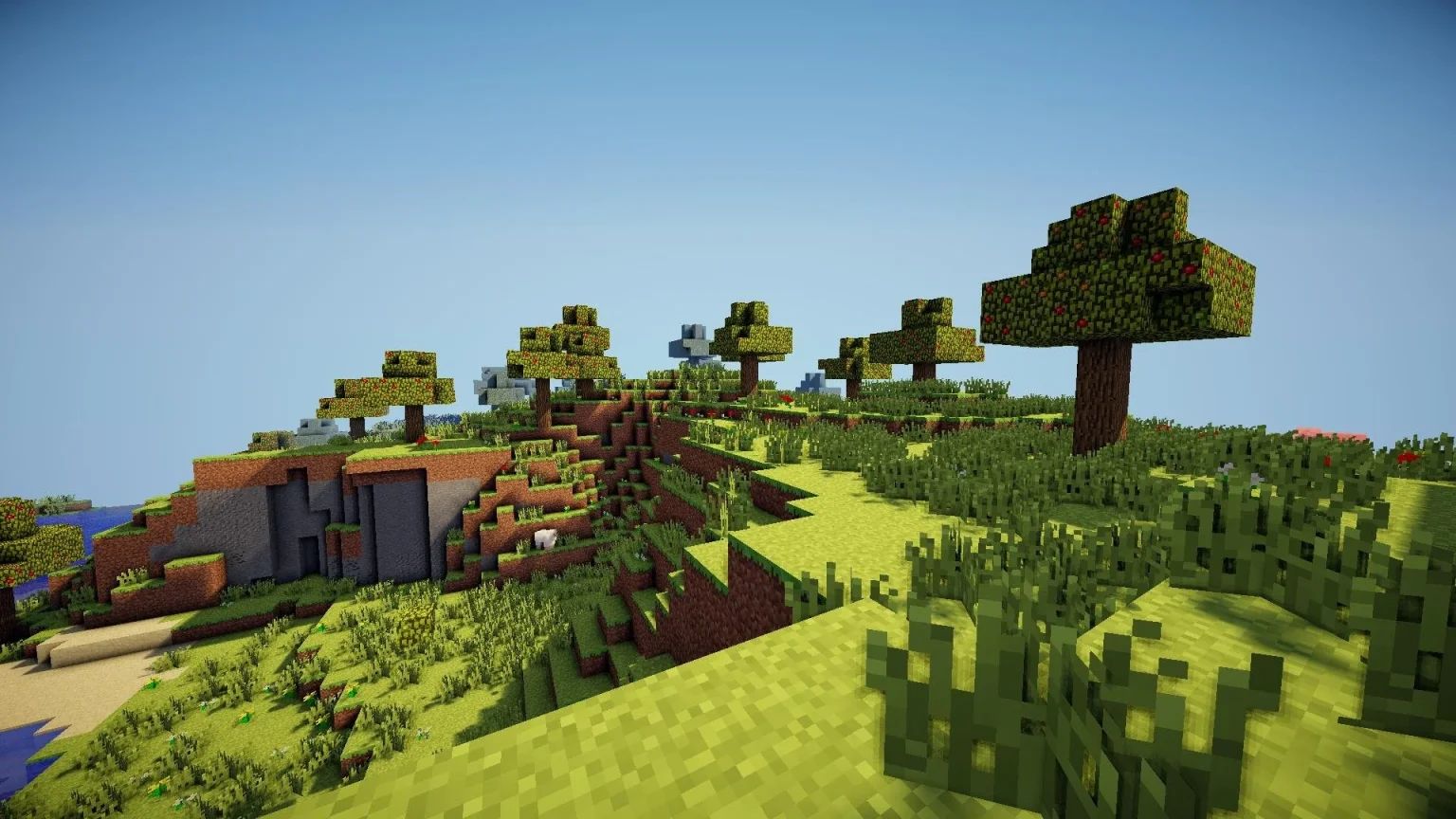

Minecraft Java Edition is the original version of Minecraft and the most flexible one, especially if you plan to use mods, shaders, or custom servers. Installing it on a Windows PC is simple, but there are a few things you’ll want to do the right way to avoid launcher or login issues.
This guide walks you through installing the latest version of Minecraft Java Edition on Windows step by step.
What You’ll Need Before You Start
Before installing, make sure you have:
- A Windows 10 or Windows 11 PC
- A Microsoft account (Minecraft now uses Microsoft accounts only)
- A Minecraft Java Edition license
(Included if you bought Minecraft: Java & Bedrock Edition for PC)
Step 1: Download the Official Minecraft Launcher
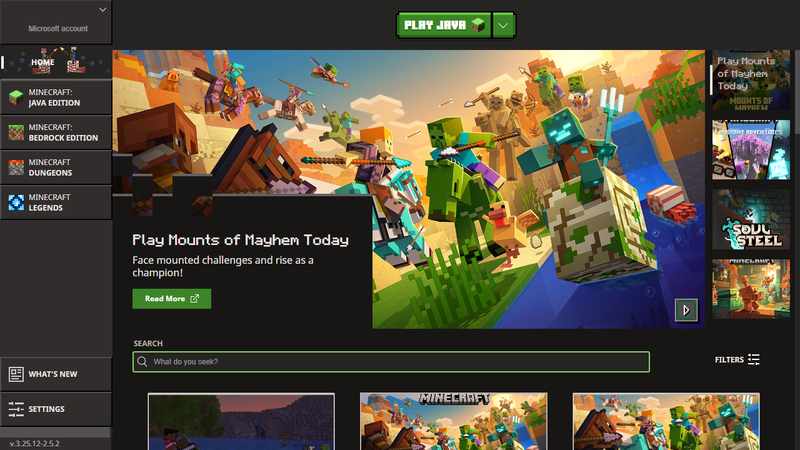
The safest way to install Minecraft Java Edition is through the official launcher from Mojang.
- Open your browser and go to the official Minecraft website
- Click Download Minecraft
- Select Windows as your platform
- Download the Minecraft Launcher for Windows
Step 2: Install the Minecraft Launcher
Once the download finishes:
- Open the downloaded
.exefile - Follow the on-screen installer steps
- Let the launcher finish installing
After installation, launch Minecraft Launcher from your desktop or Start menu.
Step 3: Sign In to Your Microsoft Account
When the launcher opens:
- Click Sign In
- Log in with the Microsoft account that owns Minecraft
- Complete any prompts if asked
Once logged in, the launcher will unlock Minecraft Java Edition automatically if it’s on your account.
Step 4: Select Minecraft Java Edition
Inside the launcher:
- Click Minecraft: Java Edition on the left sidebar
- Make sure the Latest Release is selected in the version dropdown
- Click Play
The launcher will now download all required game files for the newest version.
Step 5: Let Minecraft Download and Launch
On first launch, Minecraft will:
- Download the latest game files
- Set up folders automatically
- Launch the game once complete
This can take a few minutes depending on your internet speed.
Once the game opens, you’re officially running the latest version of Minecraft Java Edition.
Recommended Articles
by letsrespawn
by letsrespawn
by letsrespawn
by letsrespawn
by letsrespawn
by letsrespawn
by letsrespawn

letsrespawn • Hi, I’m Conner the Founder and Admin of Lets Respawn. I have a passion for Gaming, specifically Block games. I created this website to showcase cool things the community does and keep everyone in the loop 🙂
Latest
by letsrespawn
by letsrespawn
by letsrespawn