

How to Install Datapacks on Minecraft Java Edition
by letsrespawn
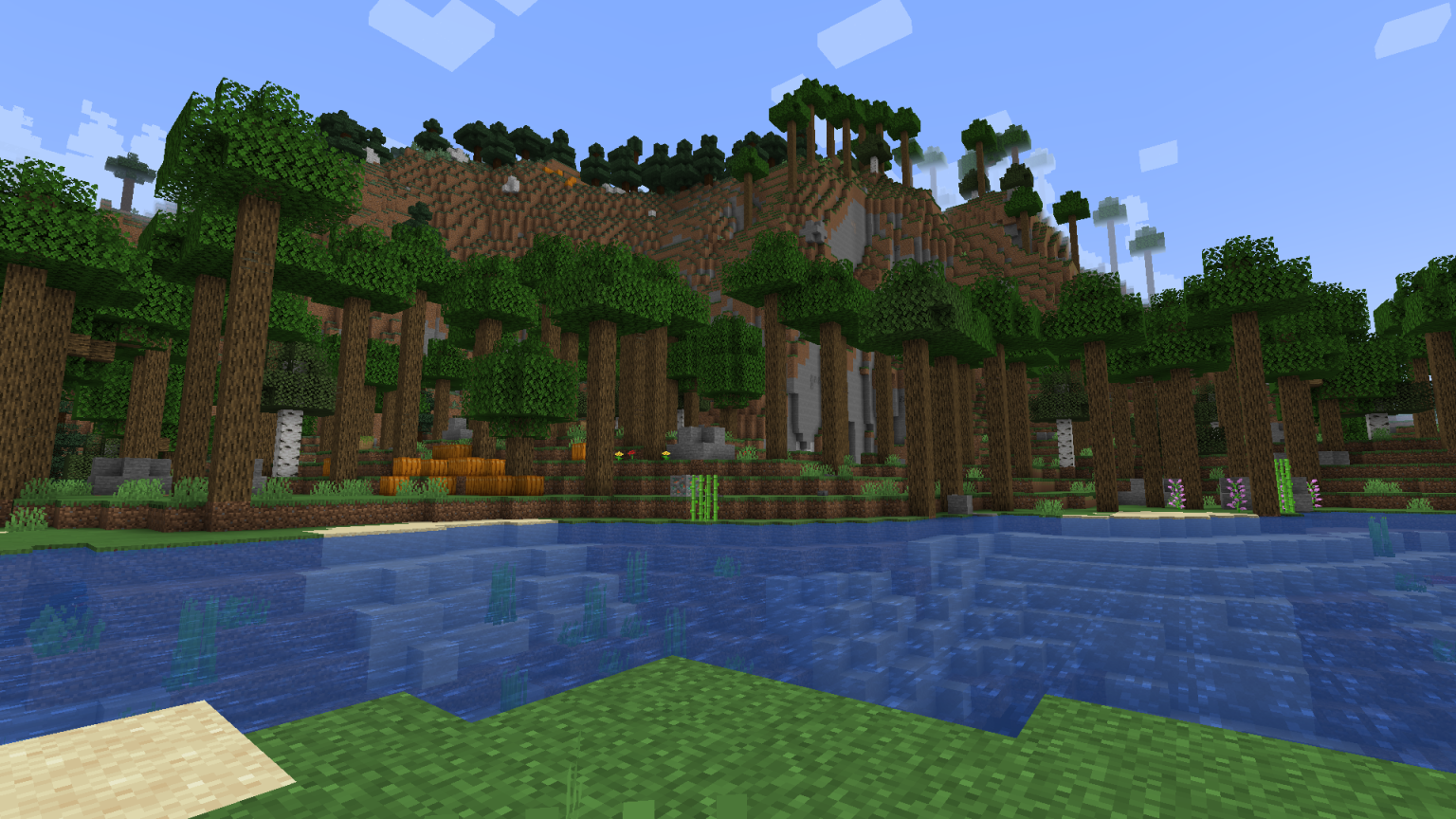

Datapacks are one of the easiest ways to upgrade your Minecraft Java world without installing mods. In this guide, you’ll learn how to install datapacks in Minecraft Java Edition in just a few minutes—no coding required.
Whether you’re adding vein mining, custom recipes, or new game mechanics, datapacks work in singleplayer and multiplayer worlds.
What Are Minecraft Datapacks?
Minecraft datapacks are files that modify game behavior using built-in commands and functions. Unlike mods, datapacks:
- Require no mod loader
- Work on vanilla Minecraft Java
- Can be added or removed per-world
- Are supported on most servers
Datapacks are ideal for players who want more features without breaking compatibility.
What You Need Before Installing a Datapack
Before you start, make sure you have:
- Minecraft Java Edition
- A singleplayer world or server
- A datapack file (
.zipor folder) - Minecraft version compatibility (check the datapack description)
How to Install Datapacks in Minecraft Java (Singleplayer)
Step 1: Download the Datapack
Download a datapack compatible with your Minecraft version.
You’ll usually receive a .zip file — do not extract it unless the creator says otherwise.
Step 2: Open Your Minecraft World Folder
- Open Minecraft Launcher
- Click Singleplayer
- Hover over your world → Edit
- Click Open World Folder
Step 3: Add the Datapack
- Open the datapacks folder
- Drag the datapack
.zipfile into it- Correct:
datapacks/example_datapack.zip - Incorrect:
datapacks/example_datapack/example_datapack
- Correct:
Step 4: Load the Datapack In-Game
- Launch the world
- Run this command:
- /reload
- You should see: “Reloaded!”
- To confirm it loaded: /datapack list
Installing Datapacks on a Minecraft Server
- Stop your server
- Open your server’s world folder
- Open the datapacks directory
- Upload the datapack
.zip - Restart the server or run: /reload
Recommended Articles
by letsrespawn

by letsrespawn
by letsrespawn

by letsrespawn

by letsrespawn
by letsrespawn

by letsrespawn

letsrespawn • Hi, I’m Conner the Founder and Admin of Lets Respawn. I have a passion for Gaming, specifically Block games. I created this website to showcase cool things the community does and keep everyone in the loop 🙂
Latest
by letsrespawn
by letsrespawn
by letsrespawn